

Add a Binance trading account
When you are done, Mishmar knows your Binance futures account. It reads the account’s margin, positions and fills with a read-only API key you make at Binance. That key cannot trade, so Mishmar keeps it whole, encrypted.
Trading comes next, one agent at a time: each agent gets its own trading key on this account, an Ed25519 API key split between the agent’s signer and Mishmar, which you register at Binance. Add an agent on Binance has the steps.
Mishmar trades Binance’s USDⓈ-M futures: perpetual contracts such as BTCUSDT. Its alpha runs on Binance demo trading, which trades virtual funds at real prices. Demo trading has its own site, demo.binance.com, with its own API keys: make every key for this account there. On a live Mishmar, the console points you to binance.com instead, and shows an IP address to allowlist (see step 4).
It takes about five minutes.
What you need
Section titled “What you need”- A Binance account on demo trading, with funds in its USDⓈ-M futures wallet: the account has to have margin to pass verification.
- The owner or admin role on the Mishmar account. Approvers and viewers cannot add trading accounts.
- A passkey or a linked wallet on your Mishmar login. Hosted Mishmar asks for a fresh proof of one before a change like this one. Add one under Profile in the console’s sidebar: Add passkey on this device under Passkeys, or Link this browser’s wallet under Wallets.
- Room on your plan. The free plan holds one trading account, on any venue.
1. Make a read-only API key at Binance
Section titled “1. Make a read-only API key at Binance”On demo.binance.com, create an API key:
- System generated: Binance makes the key and its secret.
- Enable Reading on, and every other permission off: no trading, no withdrawals.
Keep the key and its secret at hand for step 3.
Mishmar uses this key for the account’s margin, positions and fills, never for orders. It doesn’t check the key’s permissions yet, so make sure reading is all it allows.
If you trade from a Binance subaccount, make the key on that subaccount: Mishmar reads the account the key belongs to.
2. Set the position mode to One-way
Section titled “2. Set the position mode to One-way”In Binance’s futures settings, set the position mode to One-way. Mishmar doesn’t support Hedge mode, and verification fails until the account is one-way.
3. Add the trading account
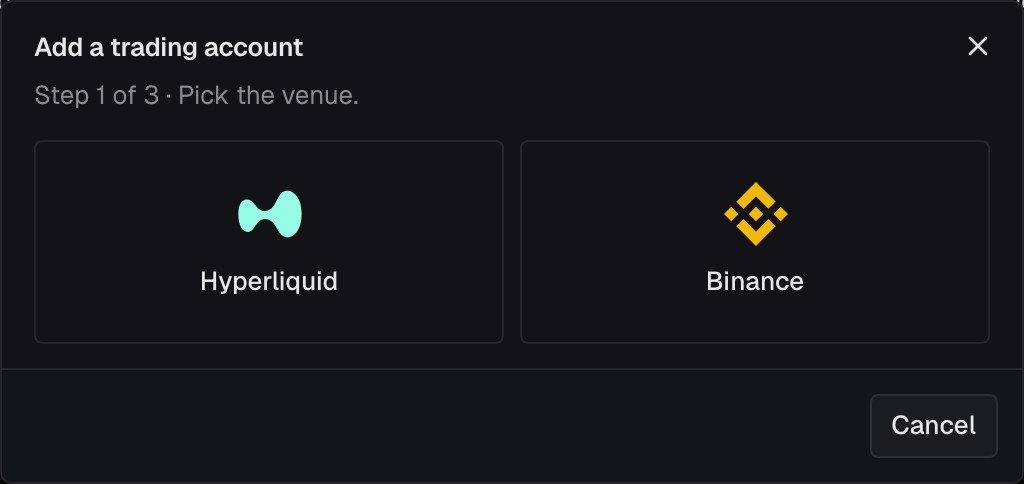
Section titled “3. Add the trading account”In the console, open Trading accounts and click Add trading account. Click Binance.
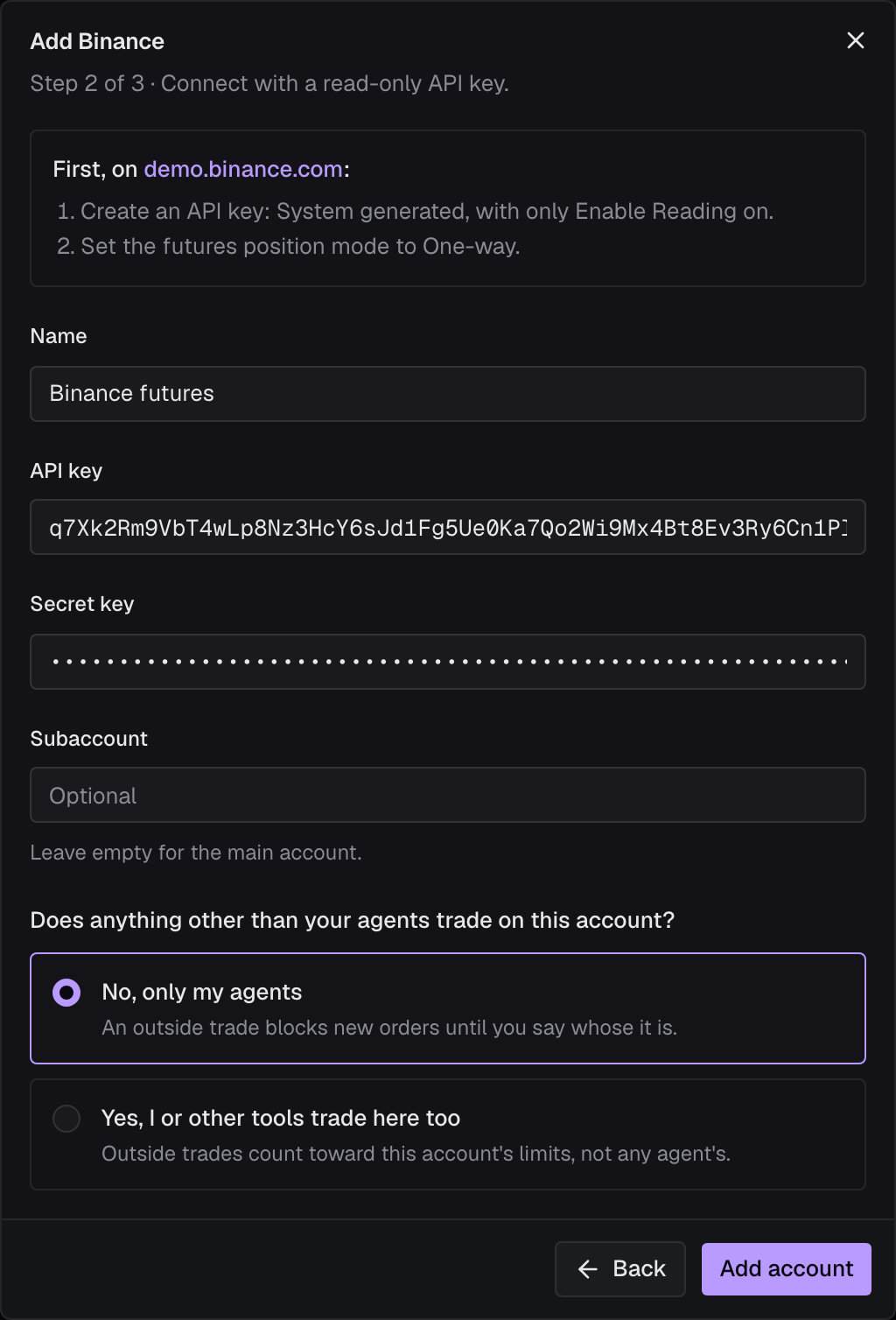
The form repeats the two Binance steps at the top, with a link to the site to make the key on. Fill in:
- Name: what you call the account everywhere in Mishmar.
- API key: the read-only key from step 1.
- Secret key: its secret.
- Subaccount (optional): leave it empty for the main account, or write the subaccount’s name for your own reference.
- Does anything other than your agents trade on this account? Choose No, only my agents if Mishmar’s agents are the only thing that trades here: an outside trade then blocks new orders until you say whose it is. Choose Yes, I or other tools trade here too if you or another bot also trade on it: outside trades then count toward this account’s limits, not any agent’s. You can change the answer later on the account’s page, under Who trades here.
Click Add account. The console may ask you to confirm with your passkey or wallet first; the proof lasts ten minutes.
4. Verify it
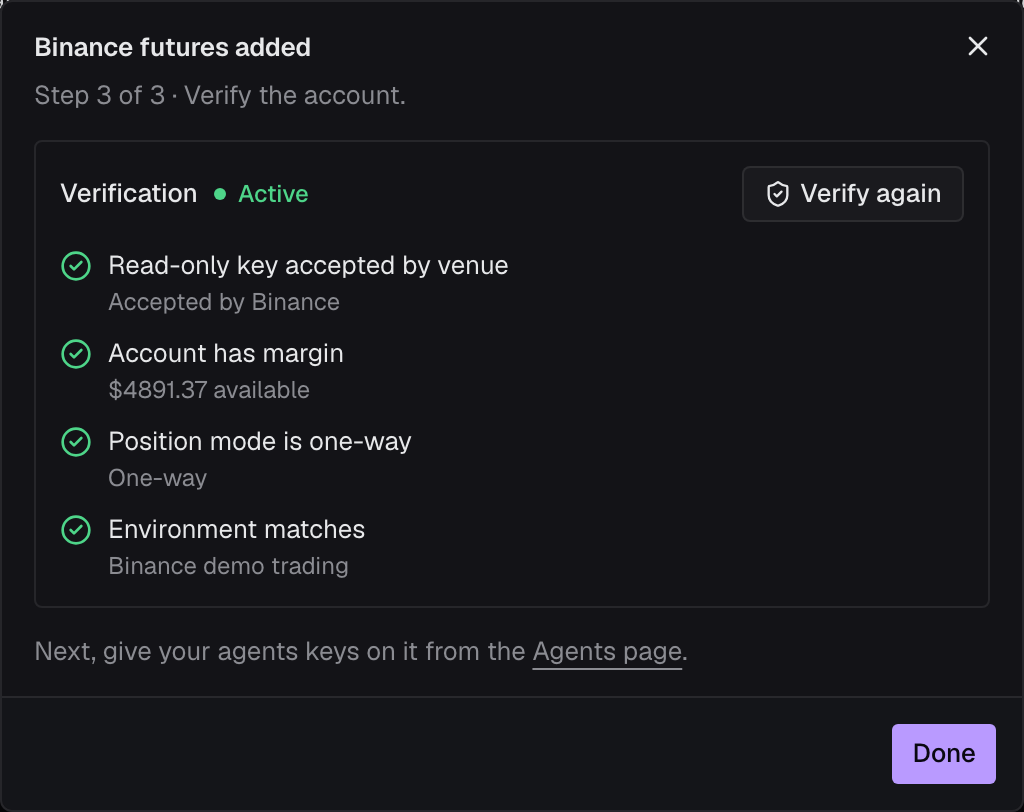
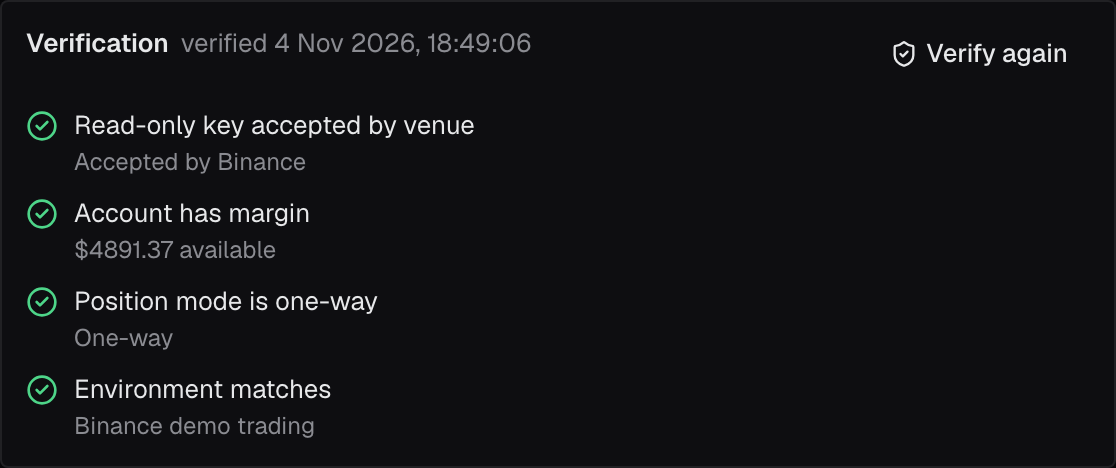
Section titled “4. Verify it”The dialog says the account was added. Click Verify now. Mishmar reads the account with the key and runs four checks:
- Read-only key accepted by venue:
Accepted by Binance. - Account has margin: the amount available, for example
$4891.37 available. - Position mode is one-way:
One-way. - Environment matches:
Binance demo trading(Binance liveon a live Mishmar).
When all four pass, the account’s status turns Active. Click Done: the trading account’s page opens.
You can also verify later: open the trading account and click Verify. Until every check passes, the account stays Pending, and an agent’s orders on it are blocked with Trading account … is not verified.
Check it worked
Section titled “Check it worked”- Trading accounts lists the account as Active, with Verified and the date under Verification.
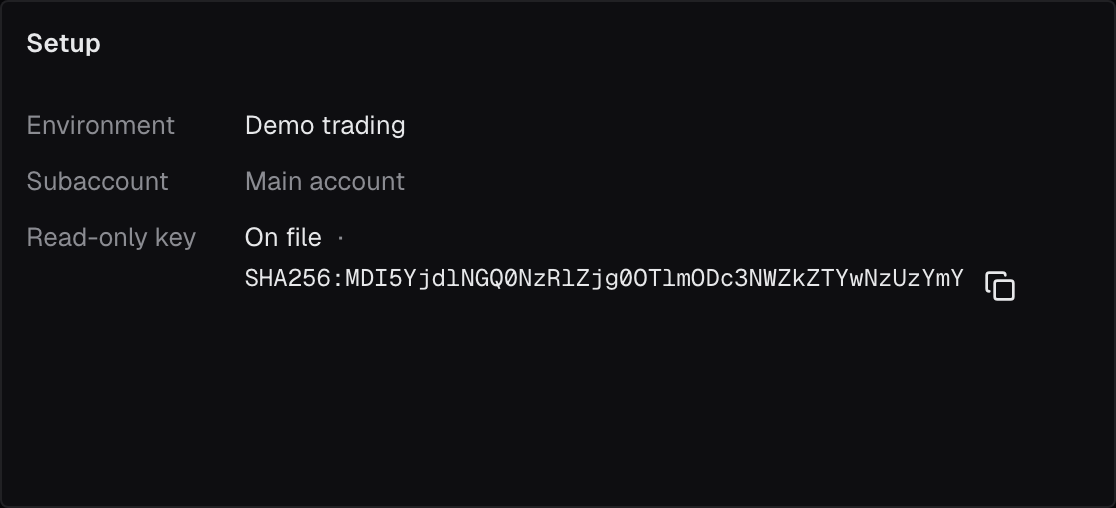
- On its page, Setup shows Environment Demo trading, Subaccount Main account (or yours), and Read-only key On file with the key’s fingerprint.
- Verification lists the four checks, all passed.
- Kind says Exchange account. Copy the account’s Id (
ta_…) from Overview: an agent proposes orders to it.
Next, add an agent on Binance.
When something goes wrong
Section titled “When something goes wrong”API key is requiredorSecret key is required: fill in both halves of the read-only key.This needs a passkey or a wallet. Add one under your profile, then try again.: your Mishmar login has neither. Open Profile, add a passkey or link a wallet, then click Add account again.- Read-only key accepted by venue fails, with
Refused by Binance: …and Binance’s reason: Binance did not accept the key. Check that you made it on demo.binance.com (a key from binance.com does not work on demo trading, nor the other way round), that you copied the key and its secret whole, and, on a live Mishmar, that the key’s IP restriction includes the address Mishmar shows. A trading account’s key can’t be changed: delete the trading account and add it again with a new key. - Account has margin fails, with
$0 available: the futures wallet has no available balance. Add funds to the USDⓈ-M futures wallet at Binance, then click Verify again. - Position mode is one-way fails, with
Hedge mode: switch the account to one-way position mode: do step 2, then click Verify again. - The toast says
… of 4 checks still failing: the failing checks are marked in red with what Binance answered. Fix them at Binance, then click Verify again. - You need to delete the trading account. On its page, click the bin icon (Delete trading account). Mishmar refuses with
Agents still hold venue keys on this trading account; revoke them firstwhile an agent has a key on it: revoke those keys on each agent’s Keys tab first. The account's plan holds 1 trading account; delete one or move to a larger plan, or Add trading account is greyed out with the reason beside it: the free plan holds one trading account, on Hyperliquid and Binance together. Delete one, or move to a larger plan.