

Connect a Binance account
When you are done, you have a connection to Binance in Mishmar, and it holds two accounts, Spot and USDⓈ-M Futures, as Binance keeps them: each one pool of money that Mishmar can read. It reads them with a read-only API key you make at Binance. That key cannot trade, so Mishmar keeps it whole, encrypted. From then on Mishmar reads both accounts every minute and keeps what it reads: each one’s balances, positions, value over time and transactions. The connection’s value is the sum of the two, and a transfer between them shows on both. What Mishmar keeps of your accounts has the details.
An account needs no agent. Agents come afterwards, and you give each one the accounts it may use: a read agent only reads them, and a trade agent also gets its own trading key on one (on Binance, the USDⓈ-M Futures account: Spot is read, not traded, for now), an Ed25519 API key split between the agent’s signer and Mishmar, which you register at Binance. Add an agent on Binance sets up a trade agent, and its dialog can connect the account on the way; Add a read agent sets up one that only reads.
Mishmar trades Binance’s USDⓈ-M futures: perpetual contracts such as BTCUSDT. Which Binance depends on your console. app.mishmar.io trades real funds on binance.com, and shows an IP address to restrict your keys to (see the note under step 3). app.testnet.mishmar.io trades on Binance demo trading, virtual funds at real prices, which has its own site, demo.binance.com, and its own API keys. Make every key for this connection on the Binance that matches your console: a key from one does not work on the other.
It takes about five minutes.
What you need
Section titled “What you need”- A Binance account, on binance.com for app.mishmar.io or on demo.binance.com for the testnet. To be traded on later, its USDⓈ-M Futures account has to be opened and funded; Before an agent trades on it says how. Connecting doesn’t need either.
- The owner or admin role on the Mishmar account. Approvers and viewers cannot connect accounts.
- A passkey or a linked wallet on your Mishmar login. Hosted Mishmar asks for a fresh proof of one before a change like this one. Add one under Profile in the console’s sidebar: Add passkey on this device under Passkeys, or Link this browser’s wallet under Wallets.
- Room on your plan. The free plan holds one connection, on any venue, with all its accounts.
1. Make a read-only API key at Binance
Section titled “1. Make a read-only API key at Binance”At Binance (binance.com for app.mishmar.io, demo.binance.com for the testnet), create an API key:
- System generated: Binance makes the key and its secret.
- Enable Reading on, and every other permission off: no trading, no withdrawals, no transfers.
- On binance.com, Restrict access to trusted IPs only, to the address the console shows as IP to allowlist (on the connection’s page once it is connected; see the note under step 3). You can add the restriction after connecting.
Keep the key and its secret at hand for step 2.
Mishmar uses this key to read the connection’s Spot and USDⓈ-M Futures accounts (balances, positions, fills and income) and never for orders. It checks with Binance that the key can do nothing but read, when you connect and again every hour; a key that can do more is not read with.
If you trade from a Binance sub-account, make the key on that sub-account: Mishmar reads the main account or sub-account the key belongs to, and a sub-account is a connection of its own.
2. Connect it
Section titled “2. Connect it”In the console, open Connected accounts and click Connect account. Click Binance.
The form repeats what to do at Binance at the top, with a button that opens Binance’s API management page on the right site. Fill in:
- Read-only API key and Its secret key: the key from step 1. Both are required.
- Sub-account (optional): leave it empty for the main account, or write the sub-account’s name for your own reference.
- Your name for it: what you call the connection everywhere in Mishmar, shown before each of its accounts (
Binance · Main · Spot). It starts asMain.
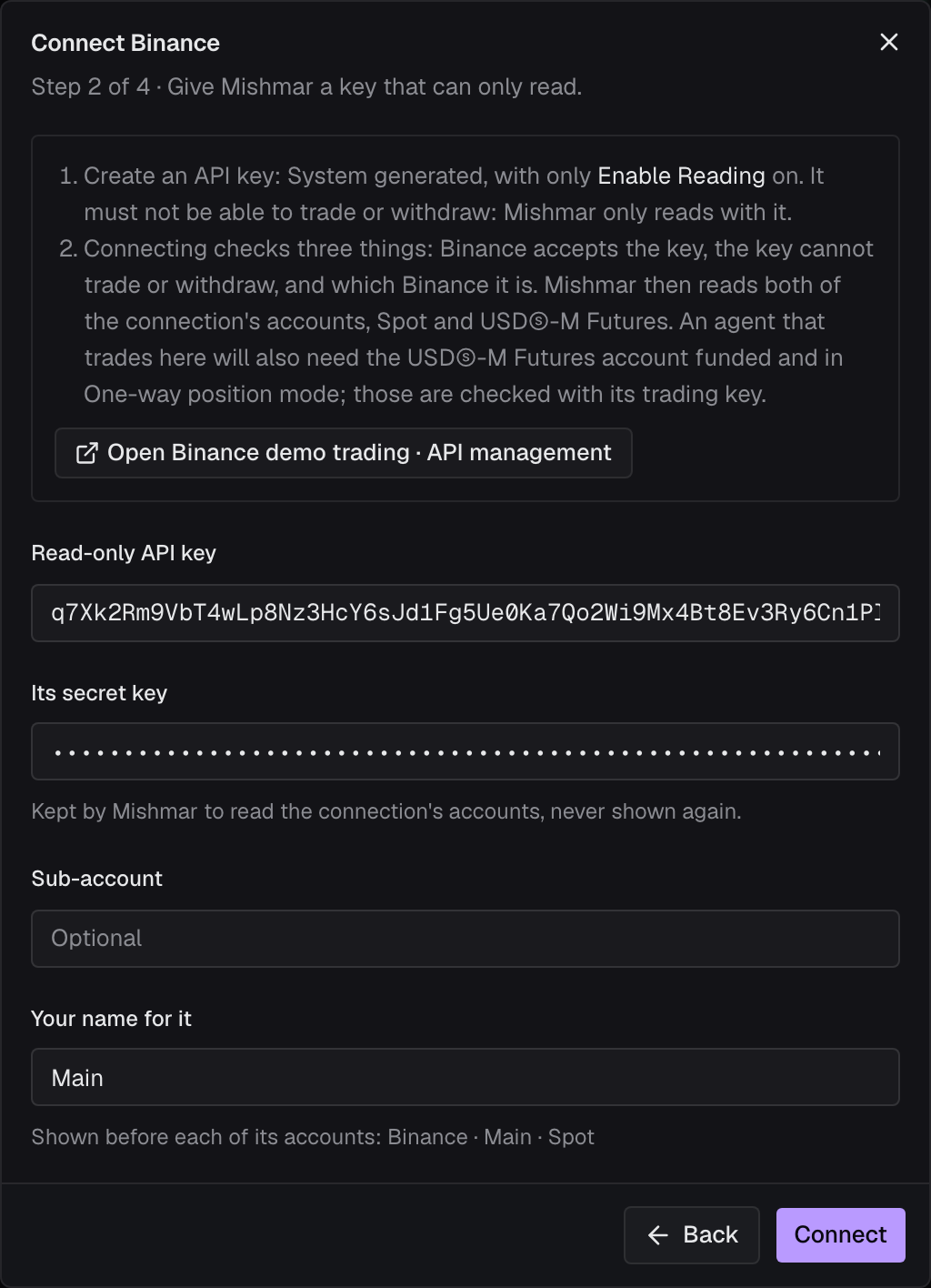
Click Connect. The console may ask you to confirm with your passkey or wallet first; the proof lasts ten minutes.
3. Mishmar checks it
Section titled “3. Mishmar checks it”The dialog reads Binance with the key at once and shows three checks:
- Read-only key accepted by venue:
Accepted by Binance. - Read-only key cannot trade or withdraw:
Reading only. Binance demo trading does not say what a key may do, so there it readsNot reported by Binance demo trading; a live key must be able to read and nothing else, and passes. - Environment matches:
Binance liveon app.mishmar.io,Binance demo tradingon the testnet.
When all three pass, the connection is verified, its accounts turn Active and the dialog moves on by itself. If one fails, fix it at Binance and click Check again, or click Use another key when Binance refused the key. The connection is saved either way: Finish later closes the dialog, and Verify on the connection’s page runs the checks again. Until every check passes, the connection and its accounts stay Pending: Mishmar does not read them yet, and an agent’s orders on one are blocked with The connection of … is not verified.
4. The first read
Section titled “4. The first read”Mishmar reads the connection for the first time. The dialog lists the accounts it found, Spot and USDⓈ-M Futures, with their values, and shows each kind of data as it arrives: Balances, Positions, Value and Transactions, each with the time it is as of. Binance answers for trades and income a week back at most, so the transactions start a week before you connected. When all four are in, the dialog says Main is connected (with your name for it). Click Done: the connection’s page opens.
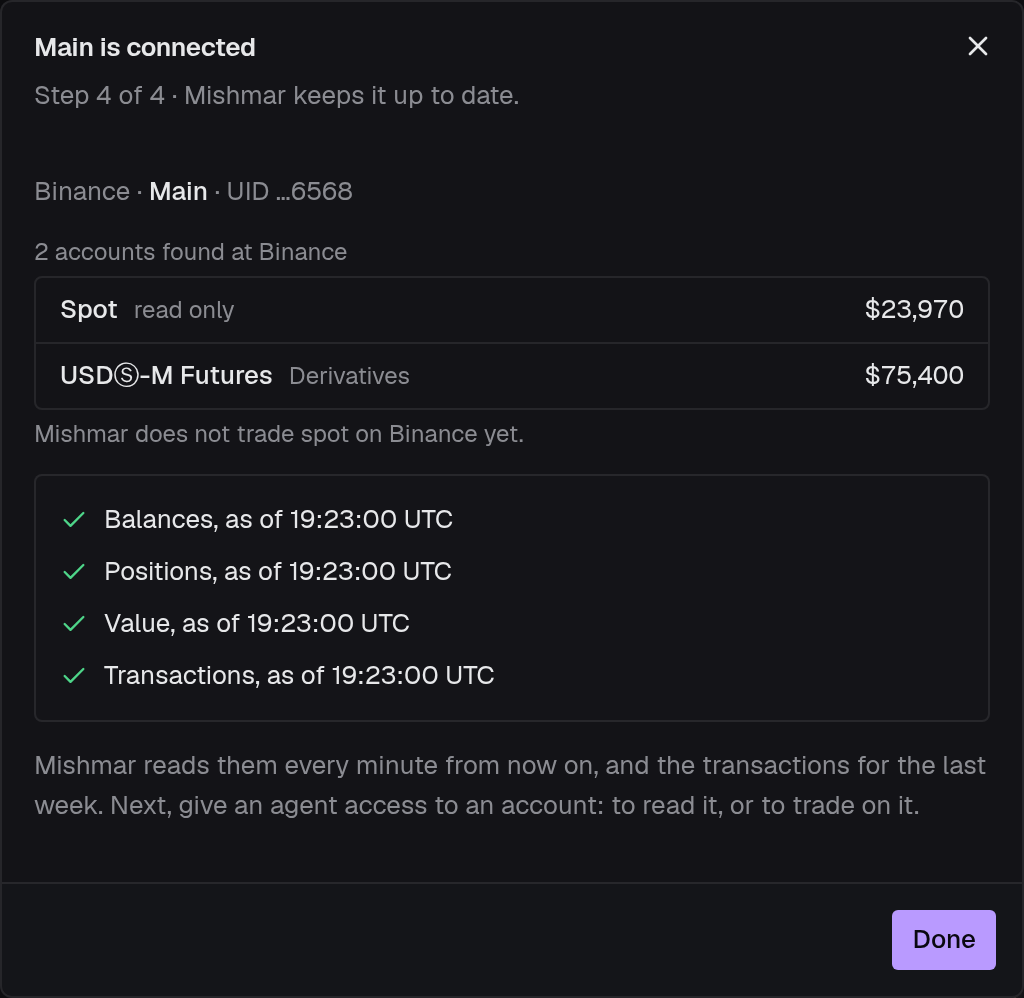
From now on Mishmar reads both accounts every minute, whether or not an agent uses them.
Check it worked
Section titled “Check it worked”- Connected accounts lists the connection with its two accounts under it, Spot and USDⓈ-M Futures, each Active. The connection’s row says Verified under Status, and the time of its last read under Data.
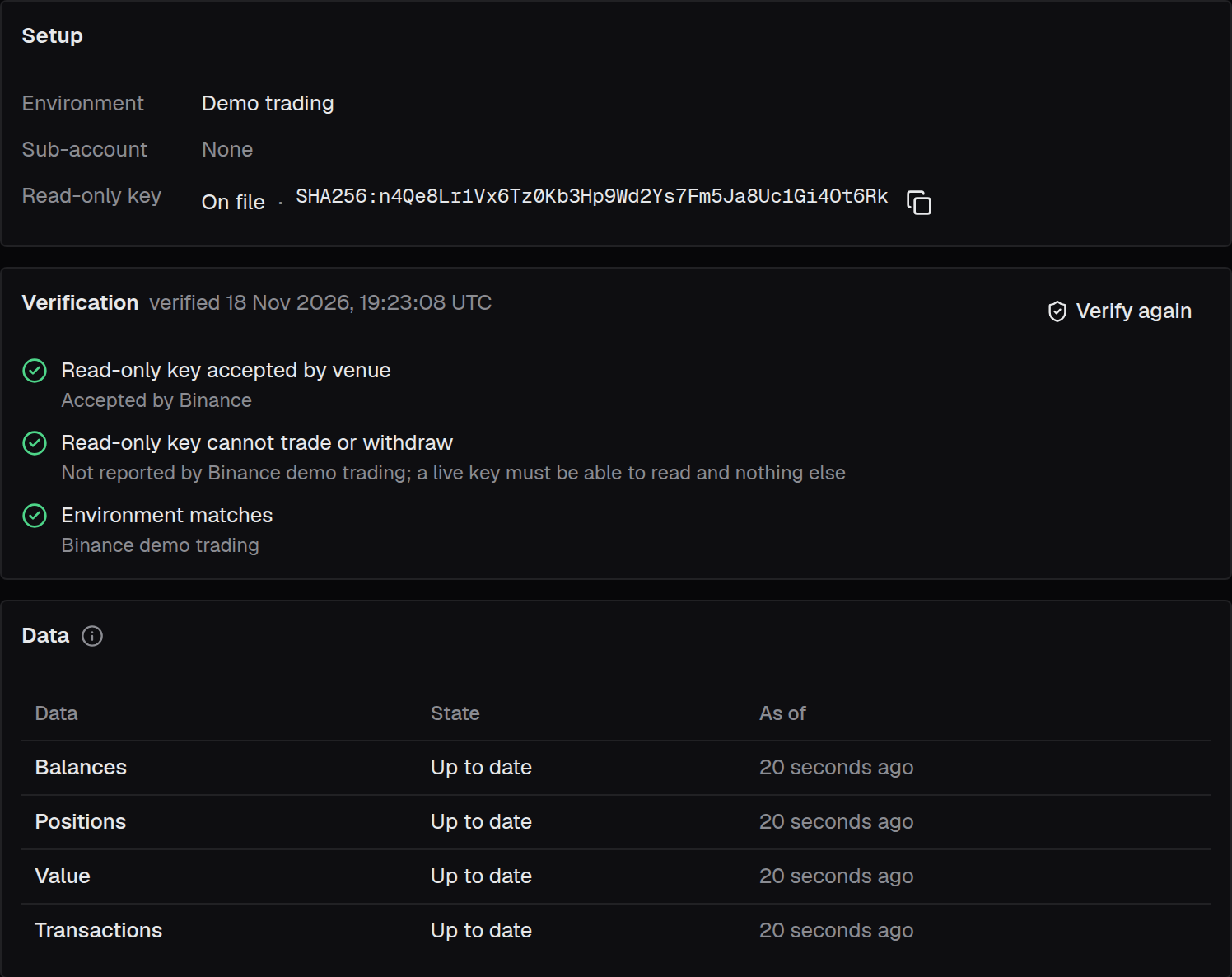
- On the connection’s page, under its Setup tab, Setup shows Environment Live (Demo trading on the testnet), Sub-account None (or yours), and Read-only key On file with the key’s fingerprint. Connection, beside it, says A read-only API key under Reached with.
- Verification lists the three checks, all passed, and Data lists balances, positions, value and transactions as Up to date.
- Open an account from the connection’s Overview, under Accounts. Its Balances, Positions, Transactions and Value tabs show what Mishmar read.
- Copy the USDⓈ-M Futures account’s Id (
ta_…) from its Overview: an agent proposes orders to it, and reads it by it.
Before an agent trades on it
Section titled “Before an agent trades on it”Reading the account needs nothing more. Trading on it does, and Mishmar checks these when it verifies an agent’s trading key, which stays pending until they pass:
- Open and fund the USDⓈ-M Futures account. At Binance: open USDⓈ-M Futures under Derivatives if the account has none (agree to the terms), then Wallet, Futures, Transfer USDT or USDC from the Spot account into the USDⓈ-M Futures account. Until both are done the key’s margin check reads
$0 available, with Binance showing no futures account at all when it was never opened. - Set the position mode to One-way, in Binance’s futures settings. Mishmar doesn’t support Hedge mode.
- Say who trades here, on the USDⓈ-M Futures account’s page, under Who trades here: Does anything other than your agents trade on this account? Choose No, only my agents (the default) if Mishmar’s agents are the only thing that trades here: an outside trade then blocks new orders until you say whose it is. Choose Yes, I or other tools trade here too if you or another bot also trade on it: outside trades then count toward this account’s limits, not any agent’s. While no agent holds a trading key on the account, the answer changes nothing.
Next, give the account to an agent: add an agent on Binance to trade on it, or add a read agent to read it.
When something goes wrong
Section titled “When something goes wrong”The read-only API key is requiredorIts secret key is required: fill in both halves of the read-only key.This needs a passkey or a wallet. Add one under your profile, then try again.: your Mishmar login has neither. Open Profile, add a passkey or link a wallet, then click Connect again.- Read-only key accepted by venue fails, with
Refused by Binance: …and Binance’s reason: Binance did not accept the key. Check that you made it on the Binance that matches your console (binance.com for app.mishmar.io, demo.binance.com for the testnet: a key from one does not work on the other), that you copied the key and its secret whole, and, on binance.com, that the key’s IP restriction includes the address Mishmar shows. In the dialog, Use another key takes a new one. Once the dialog is closed, delete the connection and connect again with a new key. - Read-only key cannot trade or withdraw fails, with
This key can do more than read: …: the key has a permission besides reading, named in the message. At Binance, edit the key, untick what the message names, keep Enable Reading, then click Check again. A key that gains a permission after it was connected is not read with until it loses it again, and the account’s page says its reads are failing. - Read-only key cannot trade or withdraw fails, with
Binance would not say what this key may do: …: on binance.com, Mishmar has to ask Binance what the key may do, and Binance refused. Check the key as above, then click Check again. - The toast says
… of 3 checks still failing: the failing checks are marked in red with what Binance answered. Fix them at Binance, then click Verify again. - The account’s page says
Mishmar can't read this account's … right now: the last reads of that kind failed, with the reason after it, and what you see is as of the time it gives. Mishmar keeps trying every minute; tell us if it doesn’t clear. - You need to delete the connection. On the connection’s page, click the bin icon (Delete connection). Deleting removes the connection with all its accounts: Mishmar stops reading them, and the agents given them lose access. Mishmar refuses with
Agents still hold venue keys on this connection's accounts; revoke them firstwhile an agent has a trading key on one of them: revoke those keys on each agent’s Keys tab first. The Mishmar account's plan holds 1 connection; delete one or move to a larger plan, or Connect account is greyed out with the reason beside it: the free plan holds one connection, on Hyperliquid and Binance together, whatever the number of accounts under it. Delete one, or move to a larger plan.