

Add a read agent
A read agent reads the accounts you give it, and nothing else: their balances, the venue’s positions, their transactions and their value over time. It holds no signer and no trading key, so it can never trade: Mishmar refuses its orders. Every read it makes shows on the account’s Access tab.
There are two ways to set one up. For an AI app you talk to, give the app Mishmar’s address and approve it in Mishmar. For a script, a bot or a report, add the agent in the console and give its program a Mishmar API key: that way is lower down. To trade as well, add a trade agent instead: on Hyperliquid or on Binance.
Connect an AI app with one address
Section titled “Connect an AI app with one address”The app will see the balances, positions, value over time and transactions of the accounts you tick. If its agent already has other accounts, because you are approving again an app that also trades, it keeps those too: the agent’s page lists every account it can read. There is no key to copy, and through this address it cannot place, change or cancel an order, move funds or change a setting.
What you need
Section titled “What you need”- An account to read, connected on Hyperliquid or on Binance. If you have none yet, the approval page offers Connect an account.
- The owner or admin role on the Mishmar account. Approvers and viewers cannot connect an app.
- A passkey or a linked wallet on your Mishmar login. Approving asks for a fresh proof of one. Add one under Profile in the console’s sidebar.
- Room on your plan. The app becomes one of the plan’s agents, and the free plan holds one. When the plan is full, the approval page offers to remove an agent to make room.
- An AI app that takes a remote MCP server address, such as Claude or Cursor.
1. Give the app Mishmar’s address
Section titled “1. Give the app Mishmar’s address”In your AI app, add a remote MCP server (some apps call it a connector) and give it this address:
https://mcp.mishmar.ioThe console shows the address for the Mishmar you are signed in to, testnet included: in Agents, click Add agent, choose Read only, then Connect an app, and use Copy address.
The app then opens your browser for you to sign in to Mishmar and approve it.
2. Approve it in Mishmar
Section titled “2. Approve it in Mishmar”Sign in to Mishmar in the browser the app opened. The Connect an app page opens, headed … asks to read your accounts with the app’s name.
- App is the name the app gives itself. Anyone can use any name, so go by Answers from: the host Mishmar checked, where the app receives your answer. Approve only if it is the app you are using.
- What approving does says what the app can do, as above.
- Mishmar account, when you have more than one: pick the one to read.
- Accounts … may read: tick each account the app may read. When there is only one, it is ticked for you.
Click Approve. The console asks you to confirm with your passkey or wallet if you have not in the last ten minutes. The page says … is connected and takes you back to the app.
The app now shows under Agents as a read agent, marked Connected app. Approve within the time the page shows beside Closes; after that the app has to ask again.
3. Ask it something
Section titled “3. Ask it something”Ask the app:
What are my open positions on Hyperliquid?It answers from the accounts its agent can read: the ones you ticked, and any that agent already had. Each read it made is listed on the Access tab of the account it read, and of the app’s agent.
Take the access away
Section titled “Take the access away”In the console, open Agents and click the app’s agent. On Overview, under App access, the Read row has Disconnect. Click it, then Disconnect again to confirm. No passkey is needed to disconnect.
It ends at once: Mishmar revokes the key it holds for the app, and within seconds every read the app tries is refused. If the agent never traded, it is removed as well, which frees its place on your plan. Deleting the agent ends the connection too.
To give the app more accounts, or take one away, use Accounts on its agent’s page, as below.
A connection also ends by itself when the person who approved it leaves the Mishmar account or is removed from it, and when the same app is approved again, which replaces the old connection. An app that has not used its connection for 90 days has to be approved again.
If it does not work
Section titled “If it does not work”This request is no longer open: it expired, or was already approved or denied. Start again from the app: connect Mishmar there once more.This request was started in another browser: a request can be approved only in the browser the app opened. Approve it there, or start again from the app in this browser.Ask an owner or admin: as an approver or viewer you cannot connect an app. Ask an owner or admin, or pick a Mishmar account where you are one.Tick at least one account for it to read.: tick an account, or connect one with Connect an account.- The app asks you to sign in to Mishmar again: its connection ended, for one of the reasons above. Approve it again, as in step 2.
- The app says
this connection cannot sign its reads: disconnect it under Agents, as above, then connect it again from the app. - The app says
this account's data cannot be reached right now: nothing is wrong with the connection. Ask again in a minute.
For scripts and bots: a Mishmar API key
Section titled “For scripts and bots: a Mishmar API key”This is the way for a program of your own: a script, a bot, a report or a dashboard, or an MCP server you run yourself. The agent has a Mishmar API key, which signs every read so Mishmar knows each one comes from this agent. When you are done, the program you give the key to can read the accounts you picked.
It takes about two minutes.
What you need
Section titled “What you need”- An account to read, connected on Hyperliquid or on Binance. The dialog can connect one on the way.
- The owner or admin role on the Mishmar account. Approvers and viewers cannot add agents.
- A passkey or a linked wallet on your Mishmar login. Hosted Mishmar asks for a fresh proof of one before adding an agent. Add one under Profile in the console’s sidebar: Add passkey on this device under Passkeys, or Link this browser’s wallet under Wallets.
- Room on your plan. The free plan holds one agent, read and trade agents together.
- Something to read with: an MCP client and the mishmar CLI (or
npx/uvx, as in the MCP setup), the Python or TypeScript SDK, or the CLI alone.
1. Add the agent
Section titled “1. Add the agent”In the console, open Agents and click Add agent.
- Name: what you call the agent everywhere in Mishmar.
- What it is for: choose Read only. Nothing is picked until you choose.
- How it reads, on hosted Mishmar: choose A key for your own program. The other choice, Connect an app, is the way above.
- Reads: tick each account the agent may read (the only one there is is ticked for you), or click Connect an account to connect one without leaving the dialog. It reads each account whole: balances, positions, value and every transaction, who placed each one included.
- Description (optional): what it reads them for.
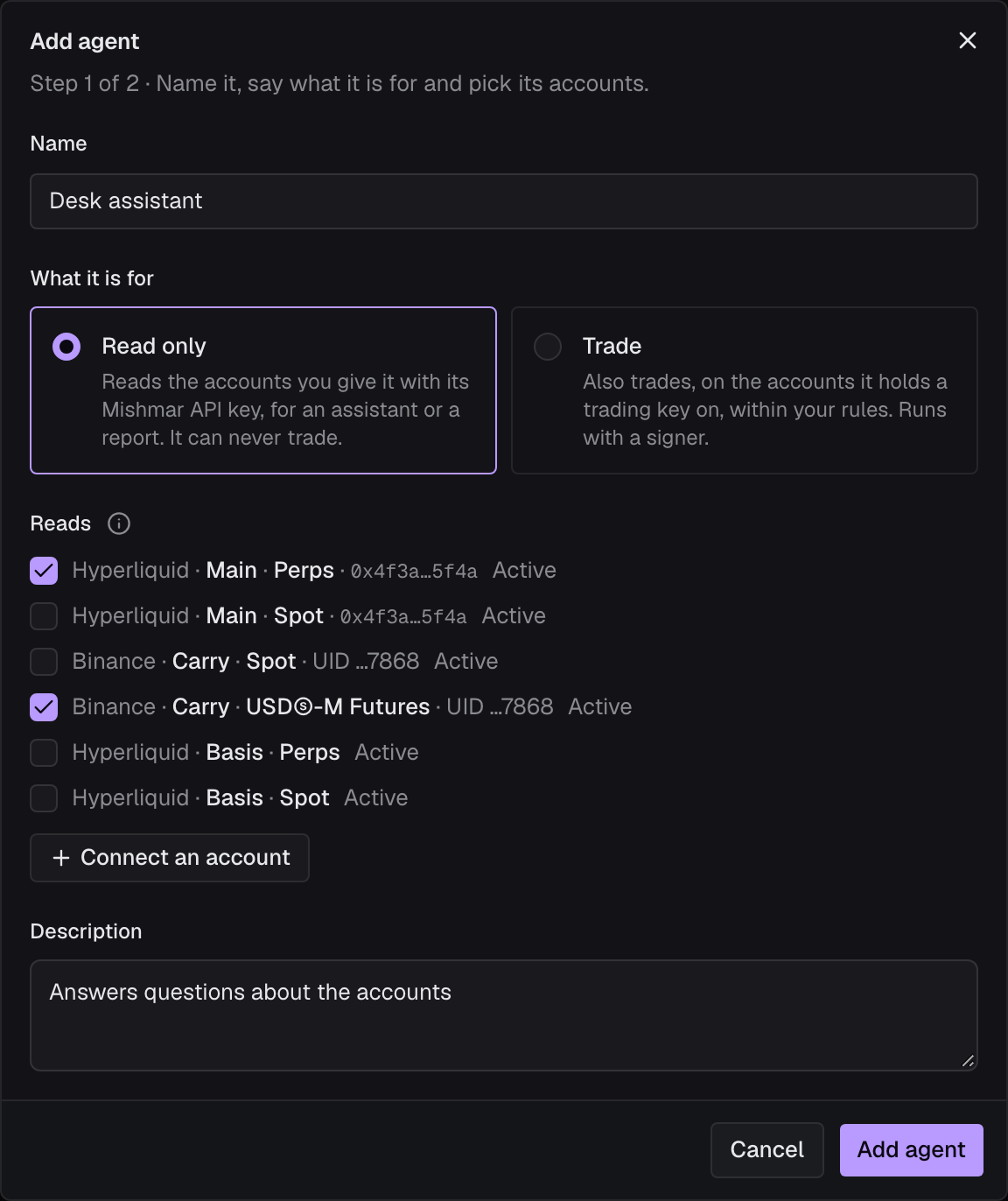
Click Add agent. The console may ask you to confirm with your passkey or wallet first; the proof lasts ten minutes.
2. Copy its key
Section titled “2. Copy its key”The dialog says the agent is ready and shows its Mishmar API key. It is shown once. Copy it before you close the dialog, with Copy key, or Copy variable for the line MISHMAR_API_KEY=msk_…. If you lose it, revoke it on the agent’s Keys tab and issue another.
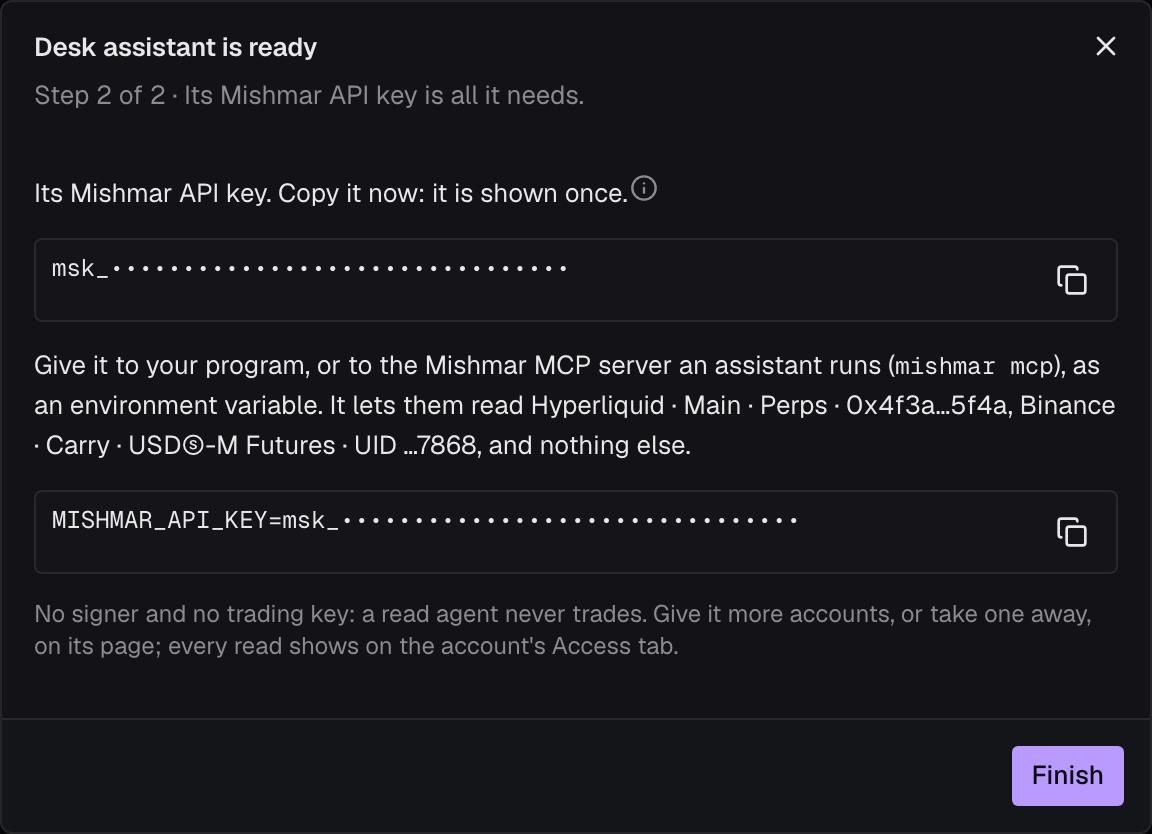
Click Finish: the agent’s page opens.
3. Read the accounts
Section titled “3. Read the accounts”Give the key to the program that reads, in its environment as MISHMAR_API_KEY. The key names the Mishmar it belongs to, so on hosted Mishmar that is all it needs; a self-hosted engine is named in MISHMAR_ENGINE as well. Treat the key like a password: it reads everything in the accounts you gave the agent.
Over MCP, for an assistant
Section titled “Over MCP, for an assistant”mishmar mcp is Mishmar’s MCP server. Put the key in the server’s env:
{ "mcpServers": { "mishmar": { "command": "mishmar", "args": ["mcp"], "env": { "MISHMAR_API_KEY": "msk_…" } } }}The first time it starts, the server checks the key with Mishmar and writes the agent’s config to ~/.mishmar/agent.json (mode 0600). If that file already belongs to another agent on this machine, give this one its own with "args": ["mcp", "--config", "/home/you/.mishmar/agents/reader.json"]. Use Mishmar from Claude, Cursor or any MCP client has the setup for each client.
These are the tools a read agent uses:
| Tool | What it reads |
|---|---|
get_identity |
Who the agent is: its id and name, its Mishmar account, whether it reads or trades, its capital when it has some, the id of its key. |
list_connected_accounts |
The accounts it was given, each with its name at the venue (Spot, Perps, USDⓈ-M Futures, or Main on a connection with one account), its value in USD (and any asset with no price, in unpricedAssets), its status, and its connection: what holds it at the venue, which main account or sub-account that is there, and how current its data is. |
get_connected_account |
One of them, with its connection’s setup and no secret. |
get_account_balances |
The account’s balances, each with its value in USD and the price used, and the account’s value; now, or at a past moment (at). An asset with no price is named in unpricedAssets instead of being counted. |
get_account_positions |
The venue’s net position in each market (a symbol with its market kind: perp, spot, …), whoever placed it; now, or at a past moment (at). |
list_account_transactions |
Trades, transfers, funding, fees and liquidations, newest first (from, to, kind, limit, cursor). A trade’s origin says who placed it. A transfer to or from another account of the same connection names it in counterpartConnectedAccountId and shows on both: it moves each account’s value by the amount and the connection’s by nothing. |
get_account_equity |
The account’s value in USD over time, oldest first (from, to, resolution: minute, hour or day). |
An account is one pool of money at a venue, and what holds it there is its connection: a Binance connection has a Spot and a USDⓈ-M Futures account, a Hyperliquid address has Perps and Spot. Every balance, position and transaction belongs to one account, and a connection’s value is the sum of its accounts’. You give an agent accounts, so it may read one of a connection’s accounts and not the other: each account says how many its connection has (connection.accountCount), and an agent that sees fewer adds up only the accounts it can see, not the connection’s value.
The server lists its other tools too. For a read agent each of them answers … is not open to a read agent, and nothing was sent, without calling Mishmar, and the signer inside the server opens no channel to Mishmar and syncs no keys: the reads above are the only calls it makes.
From code
Section titled “From code”The SDKs’ Client reads with the key alone, with no signer and no binary:
from mishmar import Client
client = Client.from_api_key()  # MISHMAR_API_KEYfor account in client.connected_accounts():    connection = account["connection"]  # what holds it at the venue    print(account["venue"], connection["name"], account["name"], account.get("equityUsd"))    snap = client.account_balances(account["id"])  # at="…" for a past moment
page = client.account_transactions("ta_…", since="2026-11-01T00:00:00Z", kind="trade", limit=200)for t in page["items"]:    origin = t.get("origin", {})  # who placed a trade    print(t["at"], t.get("symbol"), "mine" if origin.get("own") else origin.get("agentName", "outside"))
In TypeScript it is the same in camelCase, with from and to where Python says since and until:
import { Client } from "mishmar";
const client = Client.fromApiKey(); // MISHMAR_API_KEYfor (const account of await client.connectedAccounts()) {  const connection = account.connection; // what holds it at the venue  console.log(account.venue, connection.name, account.name, account.equityUsd);  const snap = await client.accountBalances(account.id); // { at } for a past moment}const page = await client.accountTransactions("ta_…", { from: "2026-11-01T00:00:00Z", kind: "trade", limit: 200 });
Each SDK also has me(), connected_account(id) (connectedAccount), account_positions (accountPositions) and account_equity (accountEquity). A page of transactions carries nextCursor when there is more; pass it back as cursor.
From the command line
Section titled “From the command line”export MISHMAR_API_KEY=msk_…mishmar read accountsta_… Hyperliquid · Main · Perps · 0x12ab…9f3c 790.12 USD active read onlyta_… Hyperliquid · Main · Spot · 0x12ab…9f3c 41.5 USD active read only total 831.62 USD as of 2026-11-12T10:00:00Z balances current as of 2026-11-12T10:00:00Z; positions current as of 2026-11-12T10:00:00Z; equity current as of 2026-11-12T10:00:00Z; transactions current as of 2026-11-12T09:58:00ZEach line is one account: its id, then the venue, the connection’s name, the account’s name and the venue’s own identifier for the connection, shortened, then its value. On a connection with a single account the account’s name is left out. The last word is traded instead of read only when an agent holds a trading key on the account. Under a connection’s accounts, total is their sum; when the agent was given fewer than all of them, that line says how many it sees (2 of 3 accounts, total of these) and the sum is of those alone. The last line says how current the connection’s data is. The other reads take the account’s id:
mishmar read balances ta_… # --at 2026-11-01 for a past momentmishmar read positions ta_…mishmar read transactions ta_… --kind trade --from 2026-11-01mishmar read equity ta_… --from 2026-10-01 --resolution daymishmar read agent # who the key belongs toTimes are RFC 3339 (2026-11-12T09:30:00Z) or a date. --json prints Mishmar’s answer as it came.
Check it worked
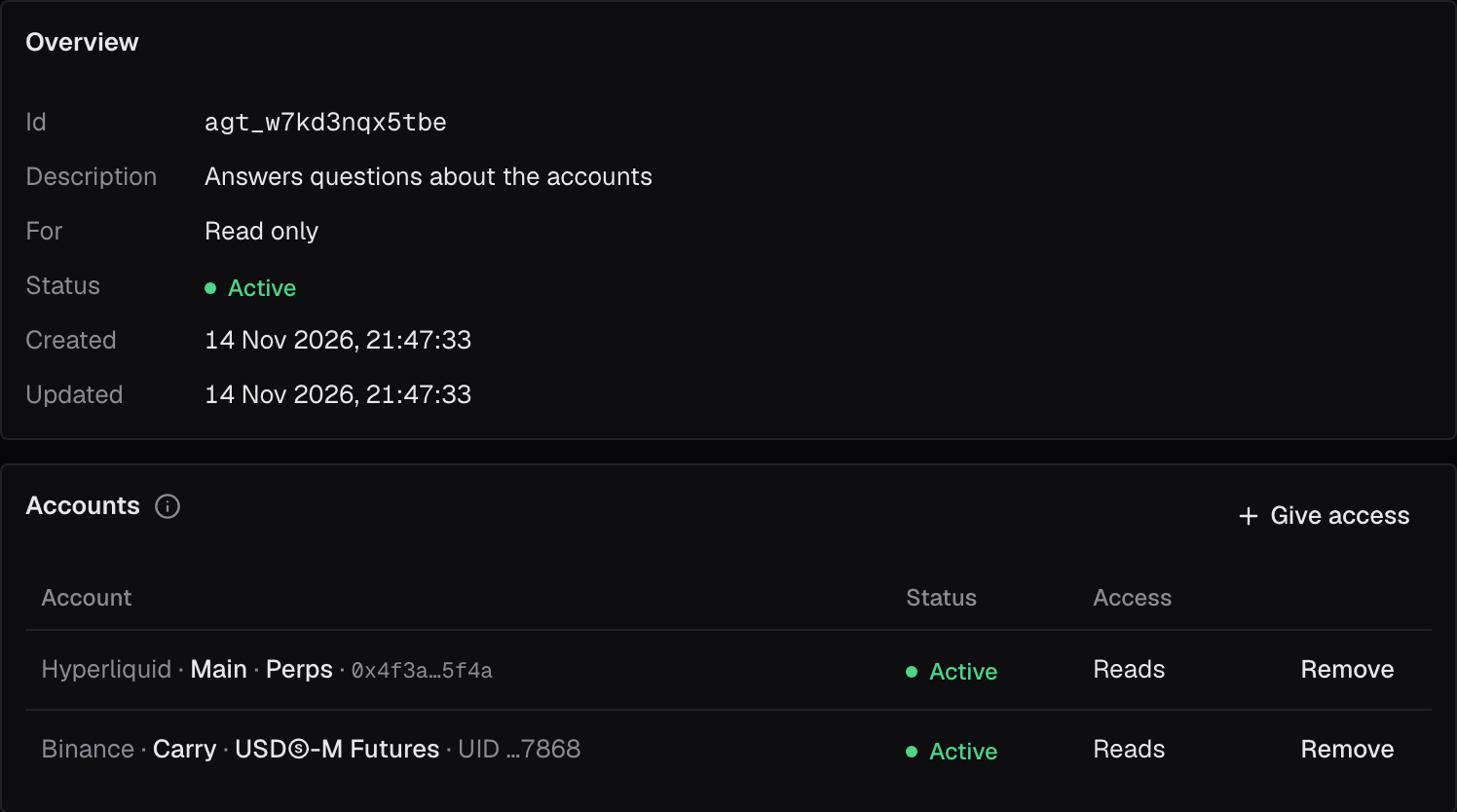
Section titled “Check it worked”- Agents lists the agent with Read only under Permission. On its page, Overview says For Read only, and Accounts lists its accounts with Reads under Access.
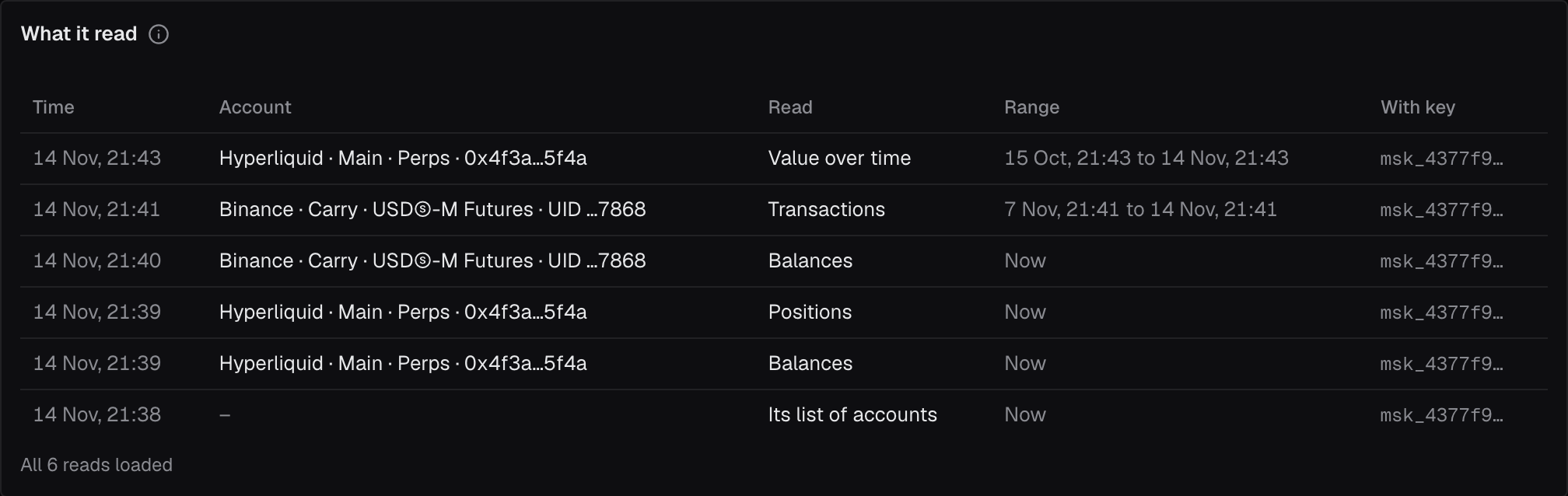
- After the program has read, the agent’s Access tab lists each read, and so does the Access tab of each account it read.
Give it more accounts, or take one away
Section titled “Give it more accounts, or take one away”On the agent’s page, under Overview, Accounts has Give access: pick the account and click Give access. Remove on an account’s row takes it away (Remove access to confirm): its reads of that account are refused from then on. What it already read can’t be taken back.
To stop the agent reading altogether, revoke its Mishmar API key on its Keys tab, or delete the agent.
When something goes wrong
Section titled “When something goes wrong”Say what the agent is forunder What it is for: choose Read only (or Trade).Pick at least one accountunder Reads: tick an account, or connect one.No account yet. Connect one first.: click Connect an account, or connect one on Hyperliquid or on Binance first.Agent … was not given this connected account: the agent reads only the accounts it was given. Give it the account on its page, or read one it has.Agent … is a read agent: it cannot propose orders, or frommishmar propose,agent … (…) is a read agent: it proposes nothing, and nothing was sent: a read agent never trades. Add a trade agent for that.no agent API key: pass api_key or set MISHMAR_API_KEY(Python),no agent API key: pass one or set MISHMAR_API_KEY(TypeScript), orno agent key: put the agent's Mishmar API key from the console in MISHMAR_API_KEY, …(CLI): the key is not in the environment of the program that reads. Export it there.… does not accept this key (…): it may have been revoked; issue a new one in the console: the key is not one Mishmar knows, or was revoked. Copy it again, or revoke it on the Keys tab and issue another.… holds another key than MISHMAR_API_KEY; remove the file to set the agent up again: the MCP server found another agent’s config at the default path. Give this agent its own with--config, as above.- A read for a past moment comes back not found: Mishmar has nothing that far back, either because it connected the account later or because the plan keeps 90 days. What Mishmar keeps of your accounts has how far back each kind goes.
The Mishmar account's plan holds 1 agent; delete one or move to a larger plan, or Add agent is greyed out with the reason beside it: the free plan holds one agent, read and trade agents together. Delete one, or move to a larger plan.